Before you start
Claim & Auction Reminder lets you save a title, the one time that matters and a link, then receive a desktop notification when it is time to act. For a Claim Sale, that is the start time. For an Auction, it is the end time.
The extension works with Facebook links and other websites. You enter each reminder yourself; it does not read your Facebook account or automatically monitor posts.
You will need:
- Google Chrome, Microsoft Edge, Brave or another Chromium-based desktop browser.
- Desktop notifications enabled for that browser.
- A computer that is awake, with the browser running, when an important alert is due.
Install the extension
1. Add it from the Chrome Web Store
- Open the official Claim & Auction Reminder listing in the Chrome Web Store.
- Select Add to Chrome.
- When Chrome asks for confirmation, select Add extension.
- Wait for Chrome to confirm that the extension has been added.
Install only from the official Chrome Web Store listing. You do not need to download a ZIP file or enable Developer mode.
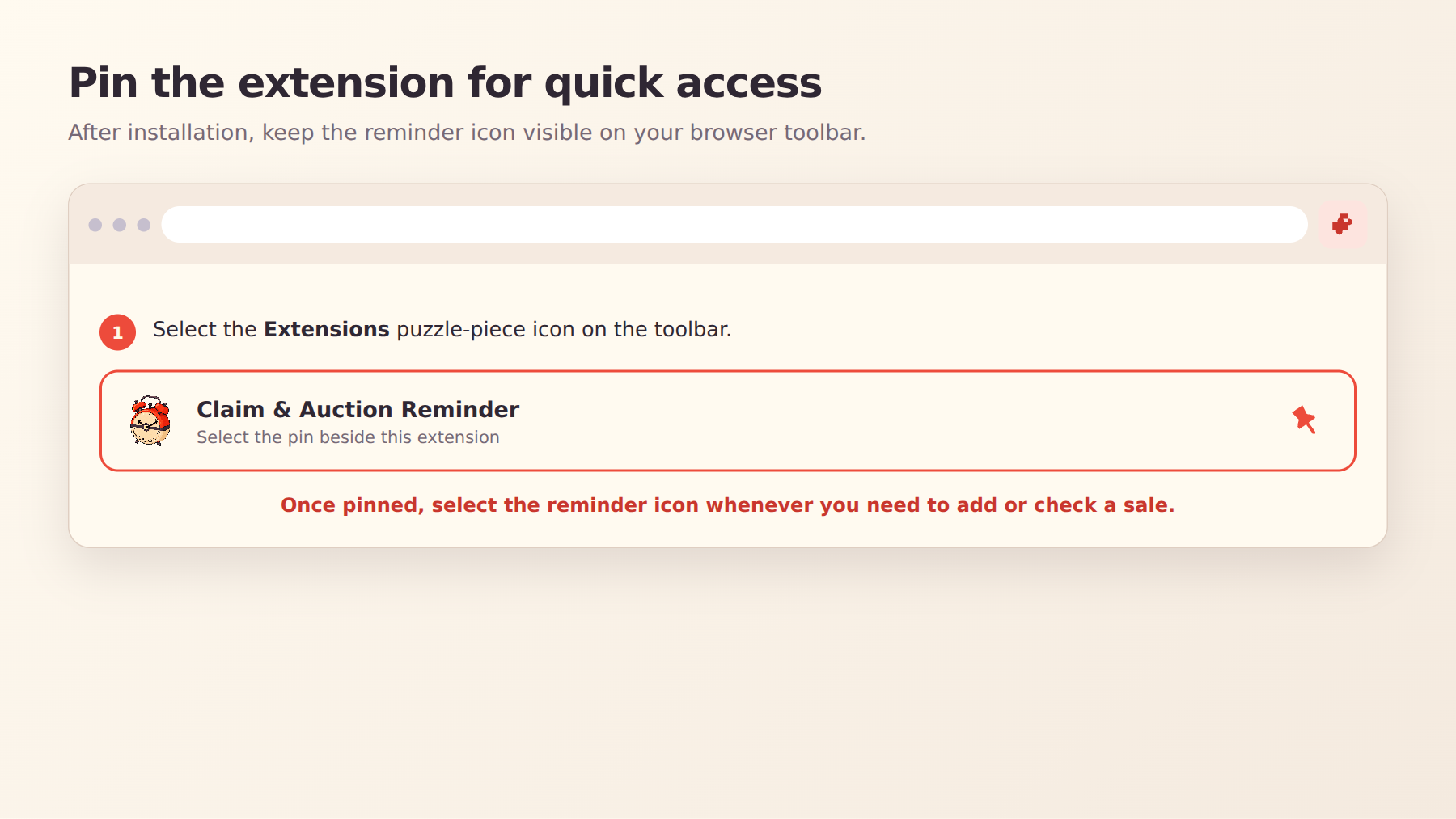
2. Pin the extension
Pinning keeps the reminder icon visible, so you do not have to search for it each time.
- Select the Extensions puzzle-piece icon on the browser toolbar.
- Find Claim & Auction Reminder.
- Select the Pin icon beside it.
- Confirm that the pixel-clock icon remains visible on the toolbar.
Enable notifications
The extension may be installed correctly but still appear silent if Windows or macOS is suppressing browser notifications.
Windows 10
- Open Start → Settings → System → Notifications & actions.
- Turn on Get notifications from apps and other senders.
- Find Google Chrome or your Chromium browser and turn its notifications on.
- Open Settings → System → Focus assist.
- Select Off.
- Review automatic Focus assist rules if it keeps turning on during games, full-screen apps or screen duplication.
macOS
- Open Apple menu → System Settings → Notifications.
- Select Google Chrome or your Chromium browser.
- Turn on Allow notifications.
- Choose a visible alert style and enable sound if desired.
- Open Control Centre → Focus.
- Turn off Do Not Disturb.
Use the extension
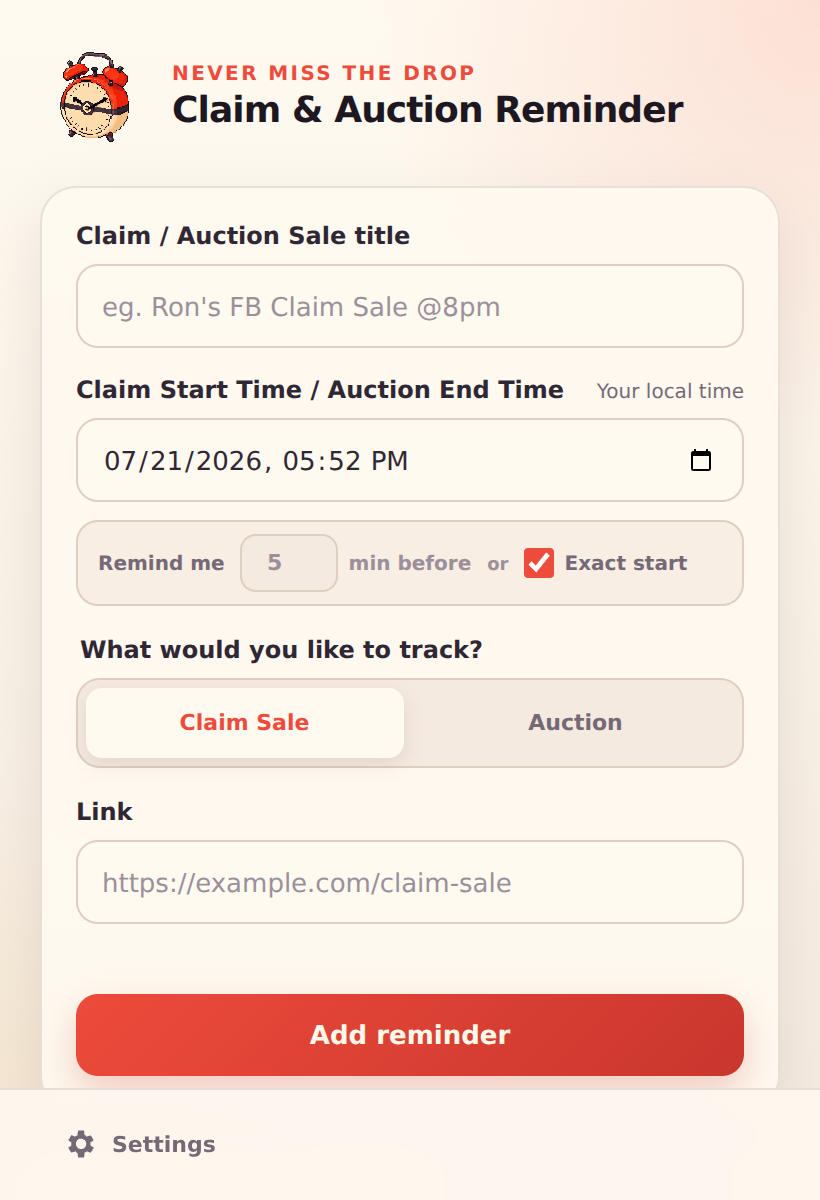
Add a Claim Sale reminder
- Select the pinned reminder icon.
- Enter the title under Claim / Auction Sale title.
- Under Claim Start Time / Auction End Time, enter the Claim Sale start date and time. The extension uses your computer’s local time zone.
- Keep Exact start selected to be notified at the start time, or clear it and enter how many minutes beforehand you want the alert.
- Leave the preselected Claim Sale option selected.
- Paste the Facebook post or sale-page link into Link.
- Select Add reminder.
Add an Auction reminder
- Enter the auction title under Claim / Auction Sale title.
- Under Claim Start Time / Auction End Time, enter only the auction end date and time. No auction start time is needed.
- Keep Exact end selected to be notified when the auction ends, or clear it and enter how many minutes before the end you want the alert.
- Under What would you like to track?, select Auction.
- Paste the auction link into Link.
- Select Add reminder.
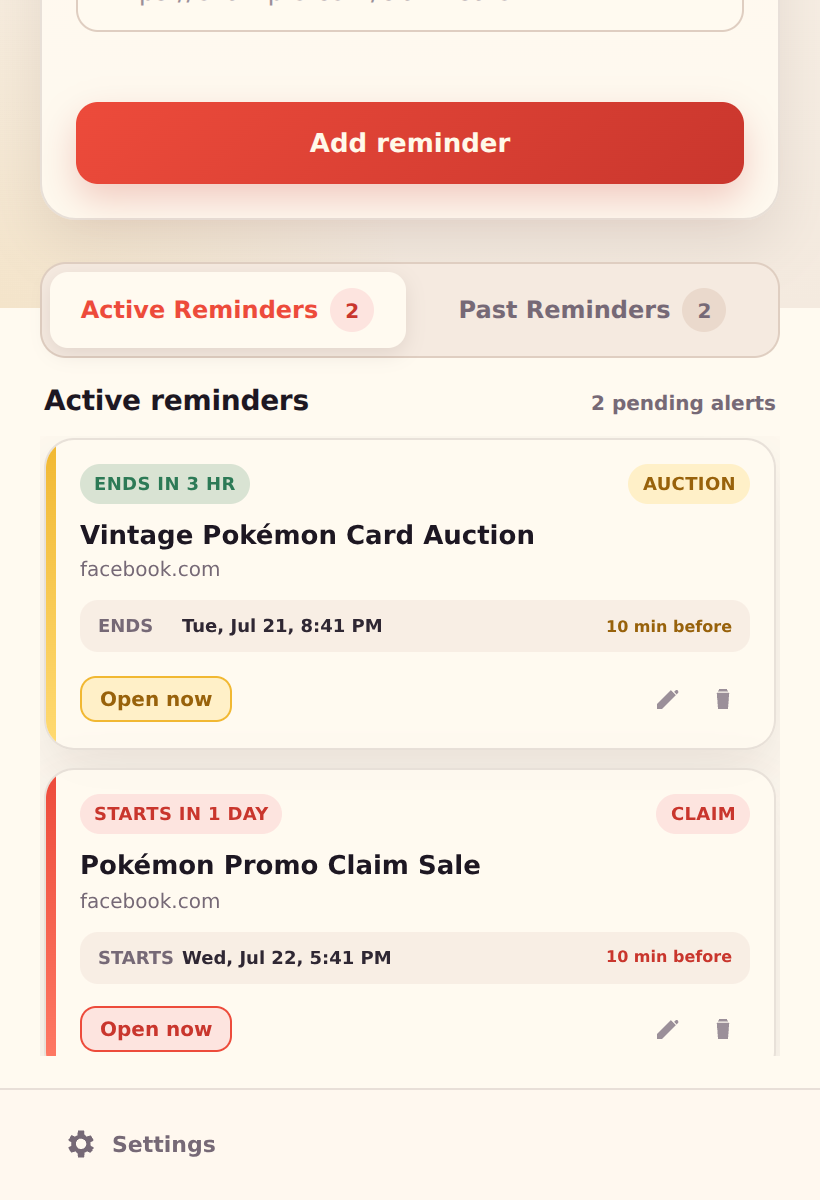
Active Reminders
Open Active Reminders to see upcoming Claim Sales and Auctions.
- A Claim Sale remains active until its start time.
- An Auction remains active until its end time.
- Select Open now to open the saved link.
- Select the pencil icon to edit an active reminder.
- Select the bin icon to delete it.
When you edit a reminder, the extension automatically replaces its old alarms with the updated schedule.
Past Reminders
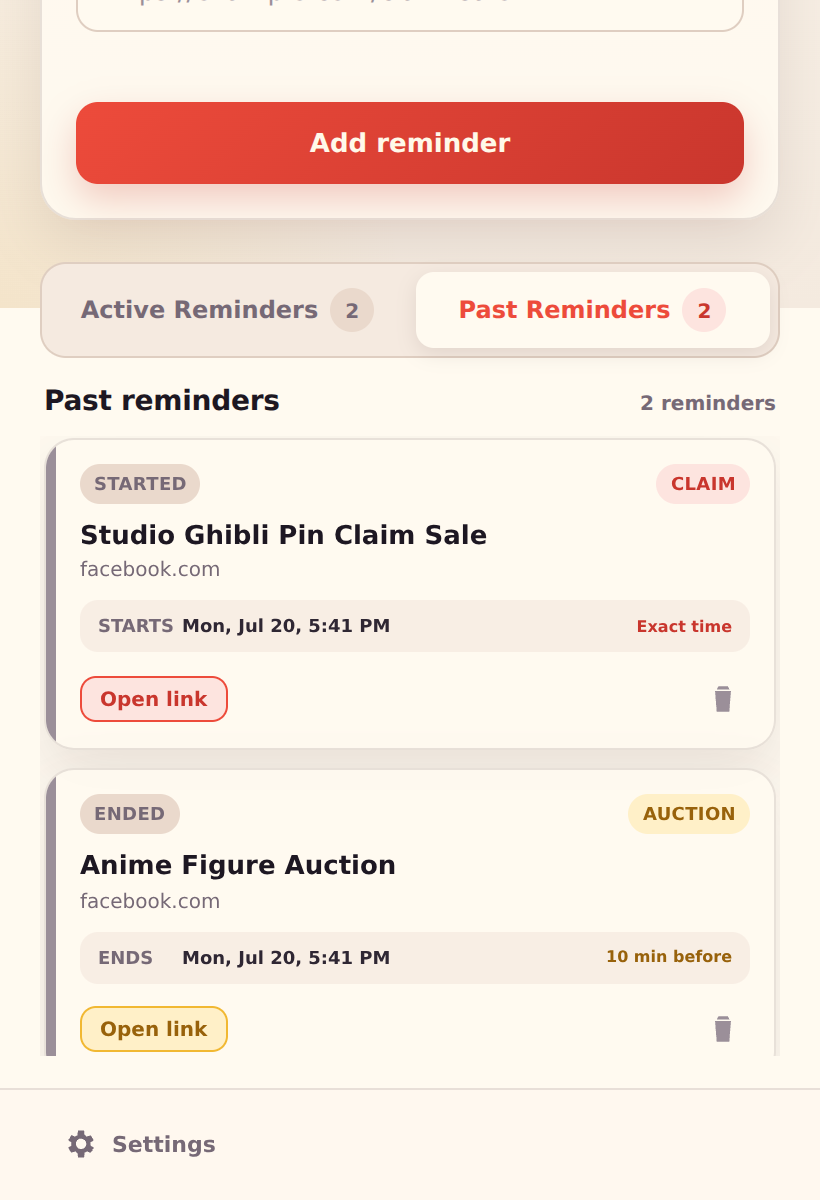
Completed items move automatically to Past Reminders:
- A Claim Sale moves there after it starts.
- An Auction moves there after it ends.
- Past reminders cannot be edited.
- You can still open their saved links or delete them.
Settings
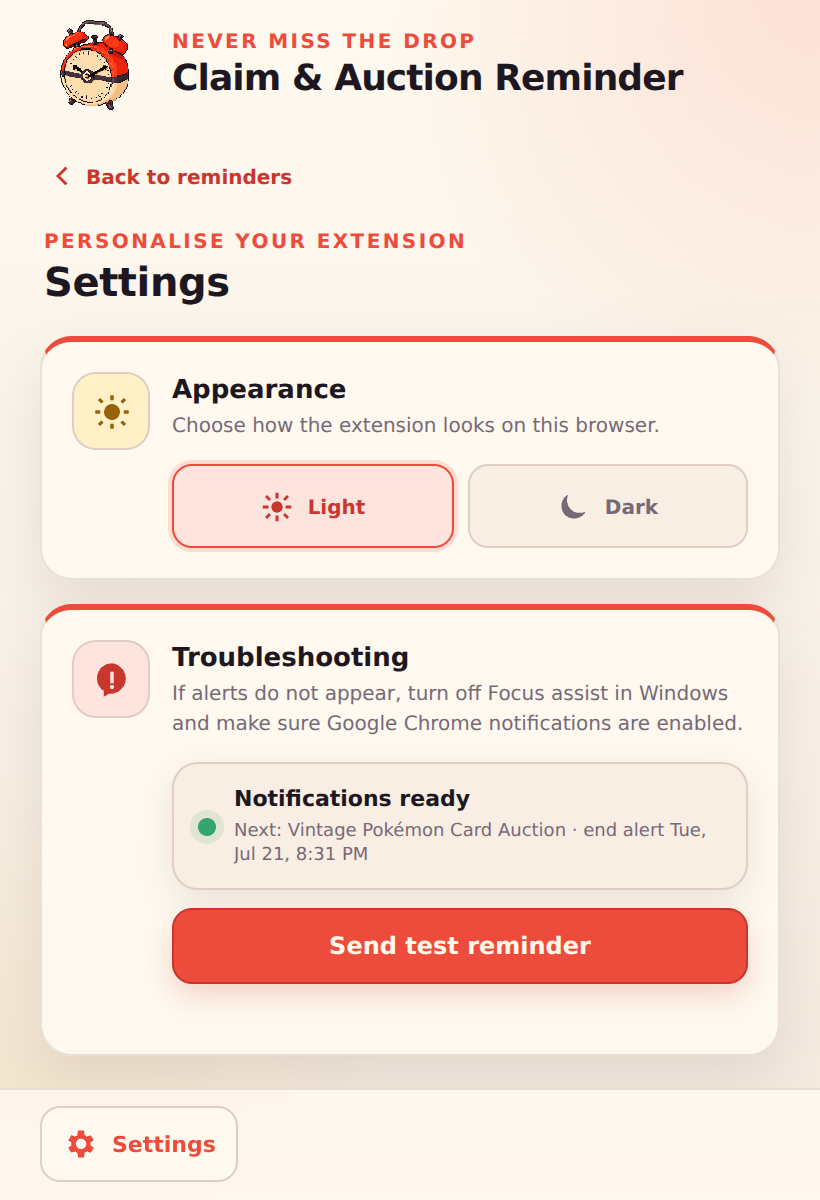
Select the cog and Settings at the bottom-left corner of the extension.
Appearance
Choose Light or Dark. Your selection is saved automatically in that browser.
Troubleshooting
The Troubleshooting section shows whether notifications are ready and displays the next scheduled alert.
Select Send test reminder. A desktop notification should appear immediately.
If the test reminder says it was sent but nothing appears:
- Open Windows Notification Centre or macOS Notification Centre and check whether it arrived silently.
- Turn off Focus assist on Windows 10 or Do Not Disturb on macOS.
- Confirm that notifications are allowed for Google Chrome or your chosen browser.
- Completely close and reopen the browser, then try again.
Common problems
The reminder does not appear
- Open Settings → Troubleshooting and send a test reminder.
- Turn off Focus assist or Do Not Disturb.
- Enable notifications for the browser in the operating-system settings.
- Keep the browser running and the computer awake.
- Check the reminder time and your computer’s time zone.
Support the project
Created independently
Help me keep building useful things.
Hi, I’m Ron. I enjoy turning ideas into useful digital tools and creative projects. When I’m not building something technical, I like to draw, play video games and explore pop culture.
If Claim & Auction Reminder has helped you catch a sale or auction, you can support future improvements and new projects by buying me a coffee. Every contribution is appreciated.
Buy me a coffee Small support.
More useful builds. Thank you for helping independent ideas grow.
Privacy
Official help
- Install, manage and pin Chrome extensions — Google Chrome Help
- Windows notification and Focus guidance — Microsoft Support
- Turn a Focus on or off on Mac — Apple Support
-
Notification settings on Mac — Apple Support
</article>
</div>